COLD MONITOR WINDOWS · BETA
// Windows Setup

Windows Install &
Usage Guide

Step-by-step instructions to install the Cold Monitor desktop agent on Windows, sign in with your API key, and start/stop your monitored work session. Shareable link for your team.

// Table of Contents
  1. Download the Installer
  2. Run the Setup Wizard
  3. Choose Install Location
  4. Finish Installation
  5. First Launch — Enter API Key
  6. Start Your Work Session
  7. Stop / Finish Work
  8. Open Dashboard & Reports
  9. Other Features
1

Download the Installer

Windows Setup
What you get

You will receive a file named Cold Monitor_0.1.0_x64-setup.exe (or a zipped version of the same). It is approximately 3.3 MB. Save it somewhere you can find easily — your Downloads folder is fine.

💡 If you received a .zip archive, right-click it and choose Extract All… first, then run the .exe inside.

SCREENSHOT 1 — The installer file as it appears in File Explorer
Cold Monitor installer file in Downloads
The Cold Monitor_0.1.0_x64-setup application shown alongside its zipped counterpart.
2

Run the Setup Wizard

Windows Setup

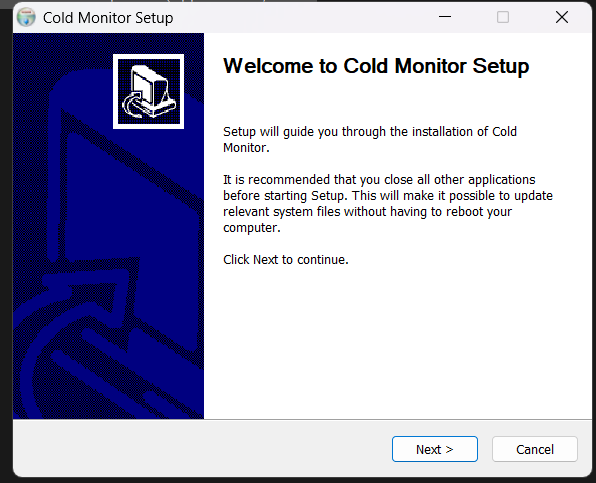
Double-click the Cold Monitor_0.1.0_x64-setup.exe file. If Windows SmartScreen shows a "Windows protected your PC" warning, click More info → Run anyway. This is expected during the beta — the installer is not yet code-signed for public distribution.

Once the wizard opens, click Next > to continue.
⚠️ Close other heavy applications before installing. Setup will register a background agent that starts with the app.
SCREENSHOT 2 — Welcome screen of the Cold Monitor Setup wizard
Cold Monitor Setup welcome screen
Click Next > to begin the installation.
3

Choose Install Location

Windows Setup

The wizard defaults to C:\Users\<you>\AppData\Local\Cold Monitor. We recommend keeping this default — it installs per-user and does not require admin rights.

Required space is around 15 MB. Click Next >.
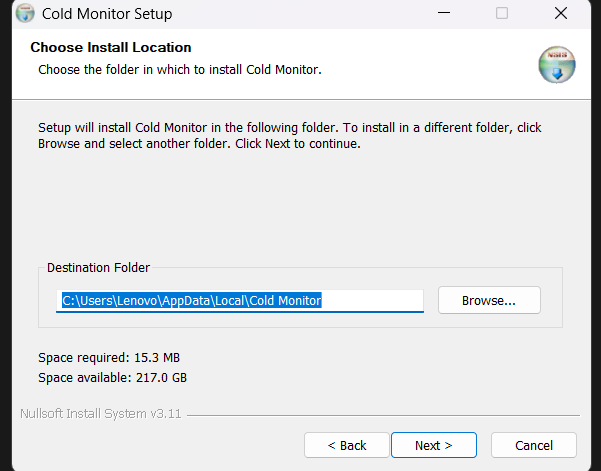
SCREENSHOT 3 — Install location picker
Choose install location
Default destination folder inside the user's AppData directory.
4

Finish Installation

Windows Setup

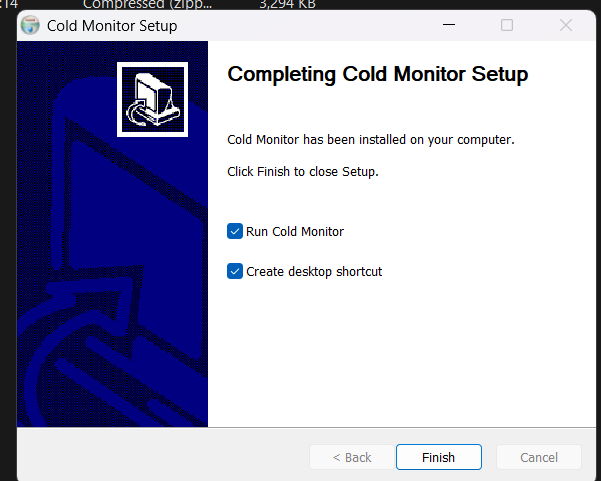
When setup completes, you will see the "Completing Cold Monitor Setup" screen. Leave both options ticked:
▶️
Run Cold Monitor
Launches the app immediately so you can enter your API key.
🖥️
Create desktop shortcut
Adds a convenient launcher icon to your desktop.
SCREENSHOT 4 — Final "Completing Cold Monitor Setup" screen
Completing Cold Monitor Setup
Click Finish to close the installer and launch the app.
5

First Launch — Enter API Key

First Run
Where do I get the key?

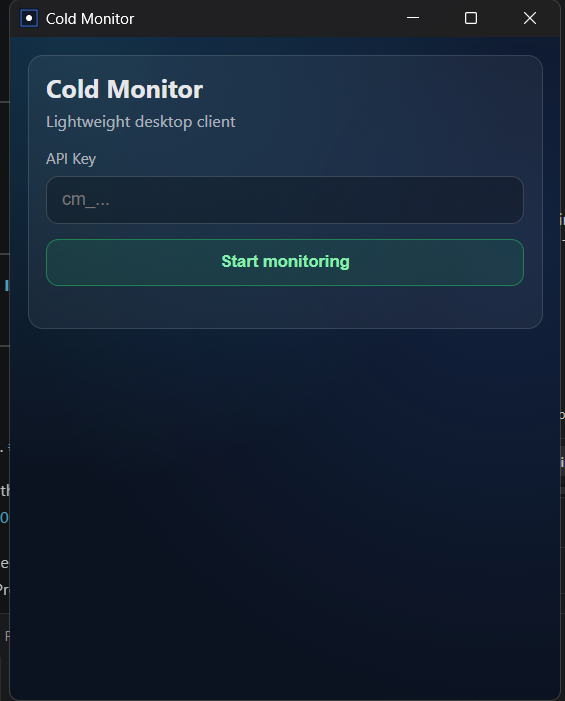
Your admin will provision an employee account and send you an API key that starts with cm_… (or a raw hex token). Paste the full key into the API Key field and click Start monitoring.
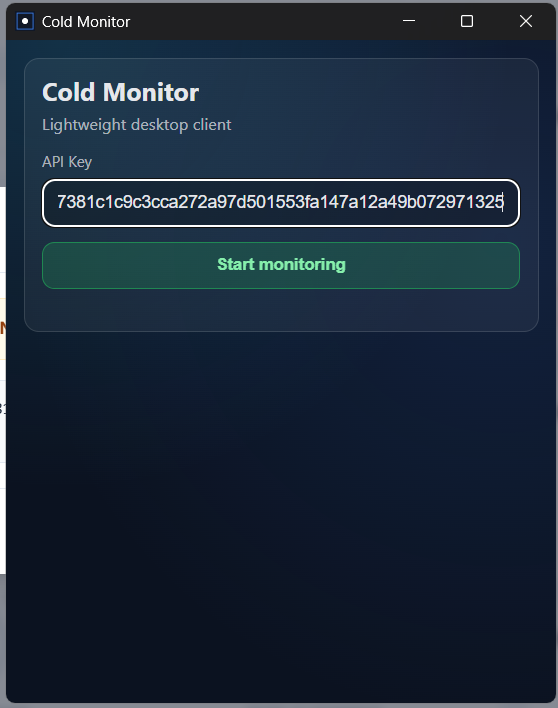
🔐 The key is stored locally and only used to authenticate the monitoring agent with the backend. You only need to enter it once.
SCREENSHOT 5 — Empty API key field on first launch
Cold Monitor API key entry
The lightweight desktop client on first launch.
SCREENSHOT 6 — API key entered, ready to activate
API key filled in
Paste your full key and click Start monitoring.
6

Start Your Work Session

Daily Use

After signing in you will see your Monitoring Profile (name, email, employee ID, role) and the Day Controller at the top. When the status badge reads idle, no capture is taking place.

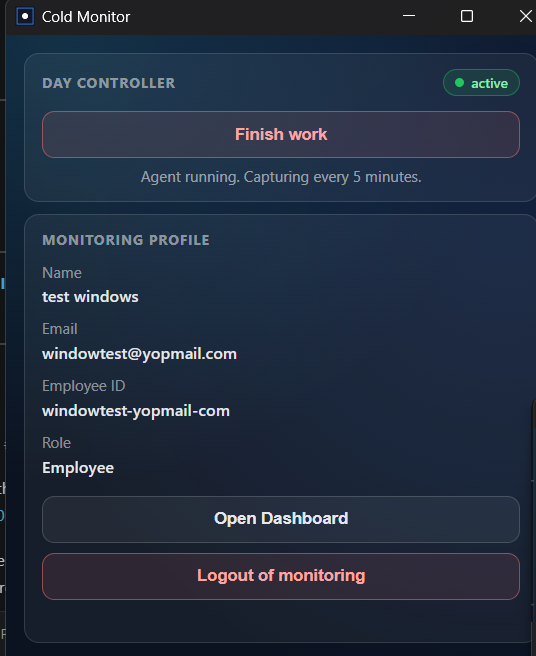
Click the big Start work button to begin your session. The status will switch to active and the agent will begin capturing screen frames in the background.
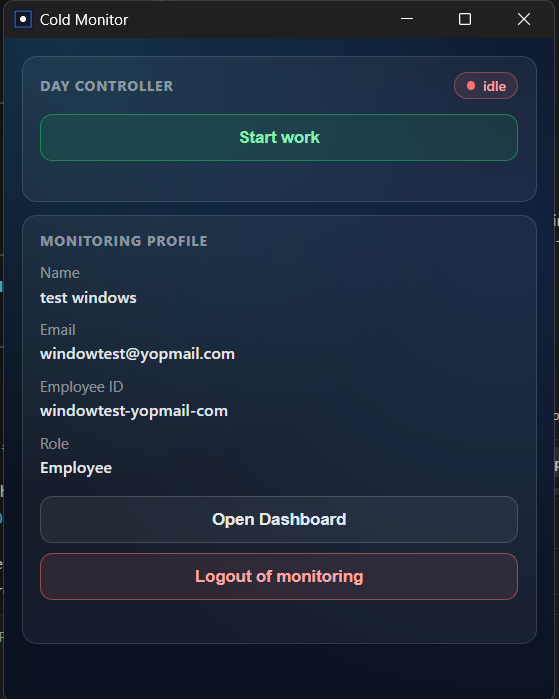
SCREENSHOT 7 — Day Controller in idle state, before starting work
Day controller idle
Profile details are shown. No frames are being captured yet.
SCREENSHOT 8 — Agent active, capturing every 5 minutes
Day controller active
The caption "Agent running. Capturing every 5 minutes." confirms the session is live.
7

Stop / Finish Work

Daily Use

When your workday ends — or any time you want to pause capture — click Finish work. The status badge returns to idle and the agent stops capturing immediately. You can start a new session later the same day; all frames from the day roll up into a single report.

⏸️ Always click Finish work before shutting down or going offline. Leaving the agent running while AFK skews your productivity score.
8

Open Dashboard & Reports

Dashboard

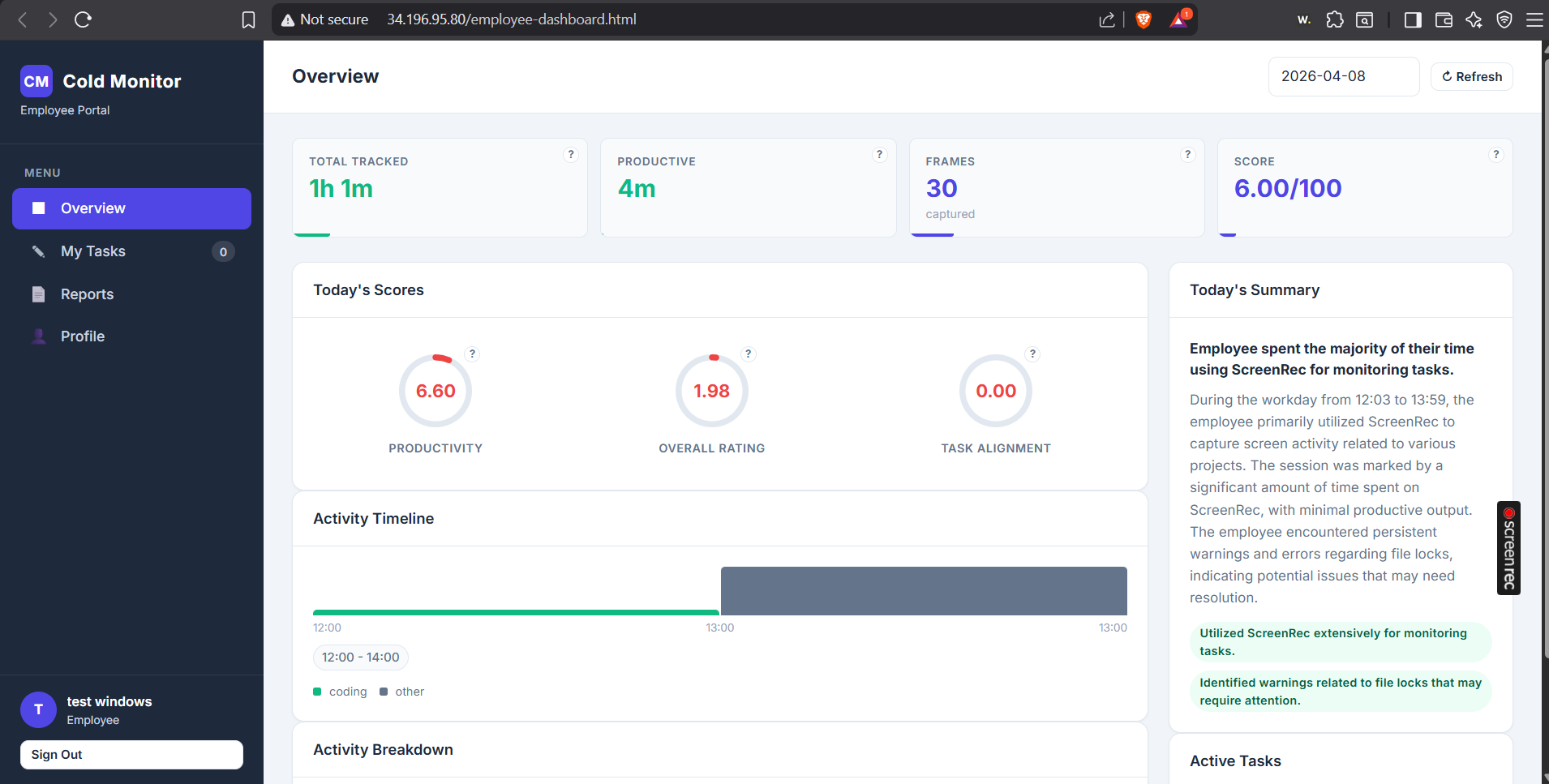
Click Open Dashboard in the app to launch your employee portal in the browser. The dashboard shows:
⏱️
Total Tracked / Productive time
Counts of active minutes and the subset classified as productive.
🖼️
Frames captured
Number of screen snapshots taken during the session.
📊
Productivity, Overall Rating, Task Alignment scores
AI-generated scores from 0–10 based on captured activity.
📅
Activity Timeline & Breakdown
Visual breakdown of what apps and categories you used across the day.
📝
Today's Summary
Plain-English narrative of your day, with highlights and warnings.
SCREENSHOT 9 — Employee dashboard overview
Employee dashboard
Overview tab showing total tracked time, scores, timeline and today's summary.
9

Other Features

Good to know
My Tasks
View tasks assigned to you by your admin. Task alignment scoring compares your captured activity against these tasks.
📄
Reports
Browse historical daily reports with full AI-generated summaries and score breakdowns.
👤
Profile
Review your employee profile, role, and linked email.
🚪
Logout of monitoring
Removes the stored API key from this device. Use only when switching users — you will need the key again to sign back in.
🔁
Capture cadence
The agent captures one frame every 5 minutes. Frames are uploaded in the background — no action needed on your part.
🧪 This is an internal beta. If you hit any issue — install failures, missing frames, score questions — share feedback directly with the development team.